Media Storage & Visual Content: Your LinkedIn Content Library
Images and videos drive 2x more engagement on LinkedIn. Learn how to build, organize, and reuse a visual content library that elevates every post you publish.
LinkedIn posts with images get 2x more engagement. Posts with videos get 5x more engagement. Yet most professionals treat visual content as an afterthought, scrambling to find an image right before publishing. A proper media library changes everything.
Why Visual Content Wins on LinkedIn
LinkedIn's algorithm favors media-rich posts because they keep users on the platform longer. A well-chosen image or video stops the scroll, captures attention, and gives your text content the visual context it needs to resonate.
The Numbers Speak
- Posts with images: 2x higher comment rates
- Native videos: 5x more engagement than text-only
- Carousel documents: 3x more reach than single images
Building Your Media Library
Organize by Category
Create folders for different content types:
- Brand assets (logos, colors, templates)
- Product screenshots and demos
- Team and culture photos
- Industry graphics and infographics
- Customer testimonials and case studies
Reuse and Repurpose
Great visual assets should be used more than once. An infographic from three months ago can be re-shared with new context. A product screenshot can illustrate multiple different feature discussions.
How Postsiva's Media Storage Works
Upload and Organize
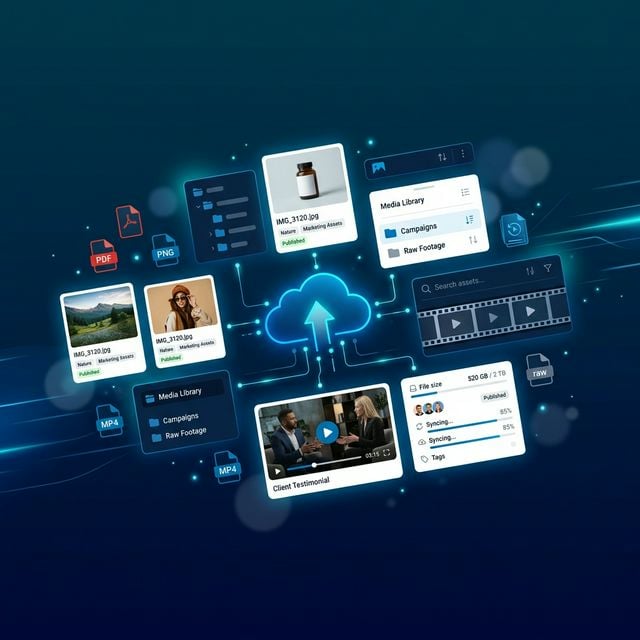
Upload images and videos directly to your Postsiva account. Organize them with tags and folders for easy retrieval when creating posts.
One-Click Media Attachment
When creating a post, browse your media library and attach images or videos with a single click. No more searching through your computer's downloads folder.
AI-Generated Visuals
Don't have the perfect image? Use Postsiva's AI to generate custom visuals from your post content. The AI creates on-brand images that complement your message perfectly.
Cross-Post Media
Use the same media across multiple posts and organization pages. Your media library is shared across your entire workspace, making team collaboration seamless.
Pro Tips for LinkedIn Visual Content
1. Use custom images over stock photos — authenticity wins 2. Maintain brand consistency — use the same color palette and style 3. Optimize image sizes — LinkedIn recommends 1200x627px for feed posts 4. Add alt text — accessibility matters and helps with search 5. Test different formats — carousels, single images, videos, and documents all perform differently
A well-organized media library isn't just about convenience — it's about ensuring every post you publish has the visual impact it deserves.
Ready to Transform Your LinkedIn Strategy?
Start using Postsiva today and experience the power of AI-driven LinkedIn automation.
Get Started Free